
The biggest obstacle to consistent corporate video isn’t equipment quality.
It’s the gap between the studio as it was designed to be used and the people who actually use it.
When a studio requires 14 manual steps before a broadcast—adjust each light, position each camera, set audio levels, configure the switcher, arm the stream, load the teleprompter—the output is only as good as the person who remembered all 14 steps, in the right order, under pressure. Miss one step and the CEO’s town hall opens with the wrong camera angle, mismatched lighting, or dead audio.
That’s not a staffing problem. It’s a design problem.
A “one-button studio” solves it by bundling all of those manual steps into saved presets that any trained operator can recall instantly. This article explains what that actually means in practice, who benefits most, how to design an automation system that’s reliable rather than fragile, and what to do when things go wrong.
What a “one-button studio” actually means—and what it doesn’t
The phrase “one-button studio” sounds like marketing. It’s worth being precise about what it actually describes, because managing expectations here is what separates a system your team trusts from one they avoid.
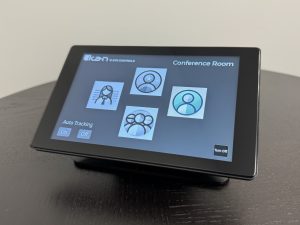
A scene preset is a saved state of every controllable device in your studio. Lights at a specific brightness and color temperature. Cameras at defined positions and zoom levels. Audio channels set to the right levels with the right inputs active. Stream destination armed. Teleprompter loaded. When an operator presses “Town Hall,” every device jumps to its pre-configured state simultaneously. No one is adjusting 14 parameters—they’re recalling one saved configuration.
Repeatability is the real value. The point isn’t just speed (though that matters). It’s that the studio looks and sounds exactly the same every time, regardless of which staff member is operating. The CEO’s weekly message has the same lighting, the same framing, the same audio quality whether it’s Tuesday or six months from now.
Role-based operation means different buttons for different show types. The operator doesn’t configure anything—they select and recall. “Town Hall” is a different button than “Executive Interview” or “Training Video.” Each one sets the entire studio to match that production type.
Now, what it doesn’t mean:
It doesn’t mean you never need a human present. For complex live productions with real-time switching, someone still needs to be in the room making decisions. Automation handles the setup and the baseline—not the editorial judgment of when to cut to camera two.
It doesn’t mean the system runs itself indefinitely without maintenance. Presets need to be reviewed when equipment changes. Firmware updates need to be tested before they’re applied in production. Documentation needs to stay current.
It doesn’t mean every possible scenario is pre-programmed on day one. Start with your three most common show types. Add more as your team gains confidence and your production needs expand.
The real enemy: setup time and operator error
The cost of a manual studio isn’t the equipment. It’s what happens before and after every production.
Setup time compounds. Every time the studio needs to be manually configured, someone is spending time on technical tasks instead of content preparation. If your team is running productions weekly, that’s hours each month spent adjusting lights, positioning cameras, and checking audio—work that adds zero creative value and could be eliminated by recalling a saved preset. Many organizations report reclaiming significant daily setup time after implementing automation.
Session-to-session inconsistency erodes brand quality. When lighting and camera positions are set manually, they drift. The key light is slightly warmer this week. The framing is slightly wider. The fill light got bumped. Individually, each variation is minor. Cumulatively, the content looks inconsistent, and brand consistency erodes in ways that are hard to diagnose but easy to notice.
Single-operator dependency creates organizational risk. If one person knows how to “run the board,” what happens when they’re on vacation, change roles, or leave the company? In a manual studio, that knowledge walks out the door. In an automated studio, the knowledge lives in the presets—any trained operator can recall them.
Uncertainty produces worse content. Non-technical operators who aren’t confident in the system make cautious, tentative decisions. They avoid using features they’re unsure about. They stick to the one workflow they’ve memorized and decline requests that fall outside it. Confidence in the system directly affects how much—and how well—the studio gets used.
| Studio task | Manual studio | Automated studio |
|---|---|---|
| Pre-show lighting setup | Operator adjusts each fixture manually | Recalled via scene preset—instant |
| Camera positioning | Operator repositions each camera | PTZ presets recalled automatically |
| Audio level check | Manual adjustment per channel | Saved per show type; operator confirms |
| Show-type switching | Full manual reset (10–20 minutes) | New preset recalled (seconds) |
| Session-to-session consistency | Varies with operator | Identical every time |
| New operator onboarding | Extended training on equipment | UI-based; learn show types, not hardware |
| Primary failure mode | Operator error, missed steps | Preset error (detectable, documentable) |
The four layers of studio automation
You don’t need to understand every protocol to understand how studio automation works. Think of it as four layers stacked on top of each other. Each layer does one job.
Layer 1: Devices. These are the individual pieces of equipment that can receive commands—PoE lighting as your first automation layer, PTZ cameras, audio channels, video switchers. Each device is controllable, meaning an external system can tell it what to do.
Layer 2: Transport. The network that carries commands between the control system and the devices. In an IP-based studio, this is your standard network infrastructure—the same cables and switches that carry video (NDI) and lighting control (Art-Net, sACN). For a deeper look at how this network layer works, see the Q-SYS integration for studio control guide.
Layer 3: Control system. The “brain” that translates a single button press into simultaneous commands to every device. When you press “Town Hall,” the control system sends lighting commands, camera position commands, audio routing commands, and stream configuration commands all at once. Q-SYS is the most common platform in corporate AV environments, though other control systems exist. What matters is that it can address every device in your studio and support the interface your operators will use.
Layer 4: User interface. What the operator actually touches—a touchscreen, a physical button panel, a tablet, or a web interface. This is the only layer the operator interacts with directly. Everything below it is invisible to them, which is the entire point.
When these four layers are properly configured, the operator sees buttons labeled by show type. The control system, transport, and devices do the rest.
Designing your buttons: interface rules for non-technical operators
Most automation content explains what a control system can do. Almost none explains how to design the interface for the person who will actually press the buttons under pressure. These rules come from real-world deployments where the operators are not AV professionals.
Name buttons by show type, not by technical function. “Town Hall”—not “Preset 4.” “Executive Interview”—not “Camera 2 + Scene B.” The operator should never need to translate between a technical label and a business outcome.
Reduce choices. If an operator has to make a decision during a live broadcast, you haven’t finished designing the automation. Every decision should have been made during the system setup phase and embedded in the presets. The operator’s job is to select and execute, not to evaluate and choose.
Build a “safe state” button. One button that returns every device to a known, neutral state. Lights to a default warm ambient. Cameras parked. Audio muted. Stream not armed. This is the panic button—the thing the operator presses when something goes wrong and they need a clean starting point.
Separate operator buttons from admin functions. The person running today’s broadcast should never accidentally change a preset while trying to start the show. Lock the programming layer behind a separate access level.
Test the interface with the actual operator before launch. Not with the system integrator. Not with the AV manager. With the person who will use it on a Tuesday morning when the CEO is waiting and the clock is ticking.
| Button name | Lighting scene | Camera preset | Audio configuration | Stream / record |
|---|---|---|---|---|
| Town Hall | Full soft-light, 5000K | Wide establishing shot, head-height | Presenter lav + room audience mic | Stream + record (dual) |
| Executive Interview | 3-point key/fill/hair, 4500K | Medium close-up, eye-level | Single lav, no room mic | Record only |
| Training / Instructional | Even soft-light, 5600K | Medium shot, locked off | Presenter lav + system audio | Record, then upload |
| Panel Discussion | Full studio, 4800K | Wide shot + 2 single cuts | 3 lavs + moderator | Stream + record |
| Standby / Off | Lights off or low ambient | Cameras parked | Audio muted | Not armed |
Implementation: a practical playbook
If you’re convinced automation is the right move, here’s how to actually do it. Follow these steps in order—the sequence matters.
- Audit your show types. List every broadcast type your studio needs to support. Town halls, executive interviews, training videos, panel discussions, hybrid meetings. This list drives your button catalog—if it’s not on the list, it doesn’t get a button.
- Map each show to device states. For each show type, define the exact state of every controllable device: light intensity, color temperature, camera position, audio routing, stream destination. This is the preset definition work, and it’s the most time-intensive step.
- Choose your control system. Q-SYS is the most common choice for corporate AV environments because it’s already deployed in many facilities and supports both AV and broadcast device control. Other platforms exist. What matters: it must be able to address every device in your ecosystem and support the UI layer your operators will use.
- Design the interface before you program anything. Get the button names and layout right first. Show the interface design to your actual operators and get their feedback. Then build the presets around the approved interface.
- Commission with your actual operator. The first full test run should be with the person who will use the system in production—not the installer, not the AV manager. Watch them work through each show type. Note where they hesitate or ask questions. Refine.
- Document everything. Preset names, device states, network addresses, escalation contacts. This is your operational resilience plan—the thing that keeps the studio running when people change roles.
For a step-by-step walkthrough of building your first automated video workflow, including control system configuration and preset programming, see the step-by-step automated workflow guide.
Governance and failure modes: designing for when things go wrong
If you’re the person responsible for a studio that serves the CEO, you need to know what can go wrong and what to do about it. Acknowledging failure modes isn’t pessimism—it’s engineering.
The most common failure: someone changed a preset accidentally. This happens when the operator interface and the programming interface aren’t separated. The fix is access control—lock the preset programming layer behind a separate login or access level. The operator can recall presets; only an administrator can modify them.
Network disruption during a live broadcast. If the control system communicates over the network and the network drops, what happens? In most control system architectures, devices hold their last commanded state—the lights stay where they are, cameras hold position. The broadcast continues with its current configuration. Build a manual fallback procedure for critical elements (knowing how to adjust one light manually, how to restart a stream) and document it on a single laminated card near the operator station.
Firmware updates that change device behavior. A fixture or camera firmware update can alter default settings or change how the device responds to commands. The fix: freeze firmware in your production environment. Test any update on a single device first. Apply to the full system only after confirming that all presets still function correctly.
The “it worked in the demo” problem. Trade show demos run on controlled networks with zero competing traffic. Your actual environment has shared network infrastructure, IT policies, and real-world conditions. Commission the automation in your actual studio, on your actual network, with your actual operator. Problems that appear in production rarely appeared in the demo.
Staff turnover. The person who was trained on Tuesday may not be the person operating on Thursday next year. Document every preset. Record a training walkthrough video. Build onboarding into your standard process rather than relying on one person’s memory.
Who benefits most—by organization type
Corporate communications teams get the most immediate value. Town halls, executive messaging, training content, and hybrid meetings are all high-frequency, high-consistency use cases where automation pays off immediately. The communications director who needs weekly video output without a production crew is the ideal one-button studio user. For the full planning approach, see planning your studio from the ground up (Article 1 in this series).
Educational institutions face a unique version of the problem: faculty and staff who need studio access but cycle through on different schedules with different skill levels. Automation means a professor can walk into a distance learning studio, select “Lecture Capture,” and get broadcast-quality output without understanding the equipment. Texas A&M operates nine distance learning studios on this model—faculty who were skeptical of the technology now request studio time because the quality difference is visible and the operation is straightforward.
Government agencies and public-sector organizations often have strict consistency requirements, limited technical staff, and multi-site deployment needs. Automation provides standardized output across locations—the same presets, the same interface, the same training process at every site. For multi-site planning, see planning your studio from the ground up.
Houses of worship operate on a weekly production cadence with volunteer operators. The automation case here is reliability: the Sunday morning broadcast needs to work every week regardless of which volunteer is running the board. Preset-based operation turns a training challenge into a selection task.
Frequently asked questions
Can non-technical staff run a video studio?
Yes—with the right automation layer. When lighting, cameras, audio, and streaming are bundled into recallable show presets, the operator role shifts from technical configuration to workflow execution. The operator selects a show type and confirms the output. They don’t need to understand the equipment at the device level.
Is studio automation only for large broadcasters?
No. Studio automation is most valuable in environments where the operators are not broadcast professionals—which describes most corporate, education, government, and house-of-worship studios. Large broadcasters already have trained engineers. It’s the organizations without those engineers that benefit most from embedding expertise into the system.
What’s the first thing I should automate in my studio?
Lighting. It’s the subsystem with the most parameters to adjust (intensity, color temperature, per-fixture positioning) and the one where manual inconsistency is most visible on camera. PoE lighting with scene presets gives you the highest-impact automation win with the least architectural complexity.
How do I prevent automation from breaking during a live broadcast?
Three practices: separate operator access from admin/programming access so presets can’t be accidentally changed, freeze device firmware in production environments, and commission the system in your actual studio with your actual operator before going live. The most common automation failures aren’t technical—they’re accidental configuration changes and untested updates.
Do I need Q-SYS for a one-button studio?
Q-SYS is the most common choice for corporate AV environments because it’s already deployed in many facilities and supports both AV and broadcast device control through certified plugins. But it’s not the only option. What matters is that your control system can address all devices in your studio and support the user interface your operators will use. If your facility already runs a different control platform, evaluate whether it can control your broadcast devices before assuming you need to switch.
Key takeaways
- A one-button studio is an architecture decision, not a product. It’s the result of defining show types, mapping device states, choosing a control system, and designing an interface your operators can use confidently.
- The real cost of a manual studio is time and inconsistency. Setup time, session-to-session variation, single-operator dependency, and operator hesitation all compound into underutilized studios and uneven content quality.
- Design the interface for the actual operator. Name buttons by show type. Reduce choices. Build a safe-state button. Test with the person who will use it under pressure.
- Plan for failure modes from day one. Access control, firmware management, manual fallback procedures, and documentation are what separate reliable automation from fragile automation.
- Start with your three most common show types. You don’t need to automate everything on day one. Build confidence with a focused set of presets and expand from there.
Ready to make your studio accessible to your whole team? Book an automation readiness consult—we’ll help you map your show types, evaluate your control system options, and design an interface your operators will actually use.